Use the calendar and export your schedule
The Calendar shows what you have done and what is coming, plant by plant, a month at a time. You can also take your schedule into the calendar app you already use.
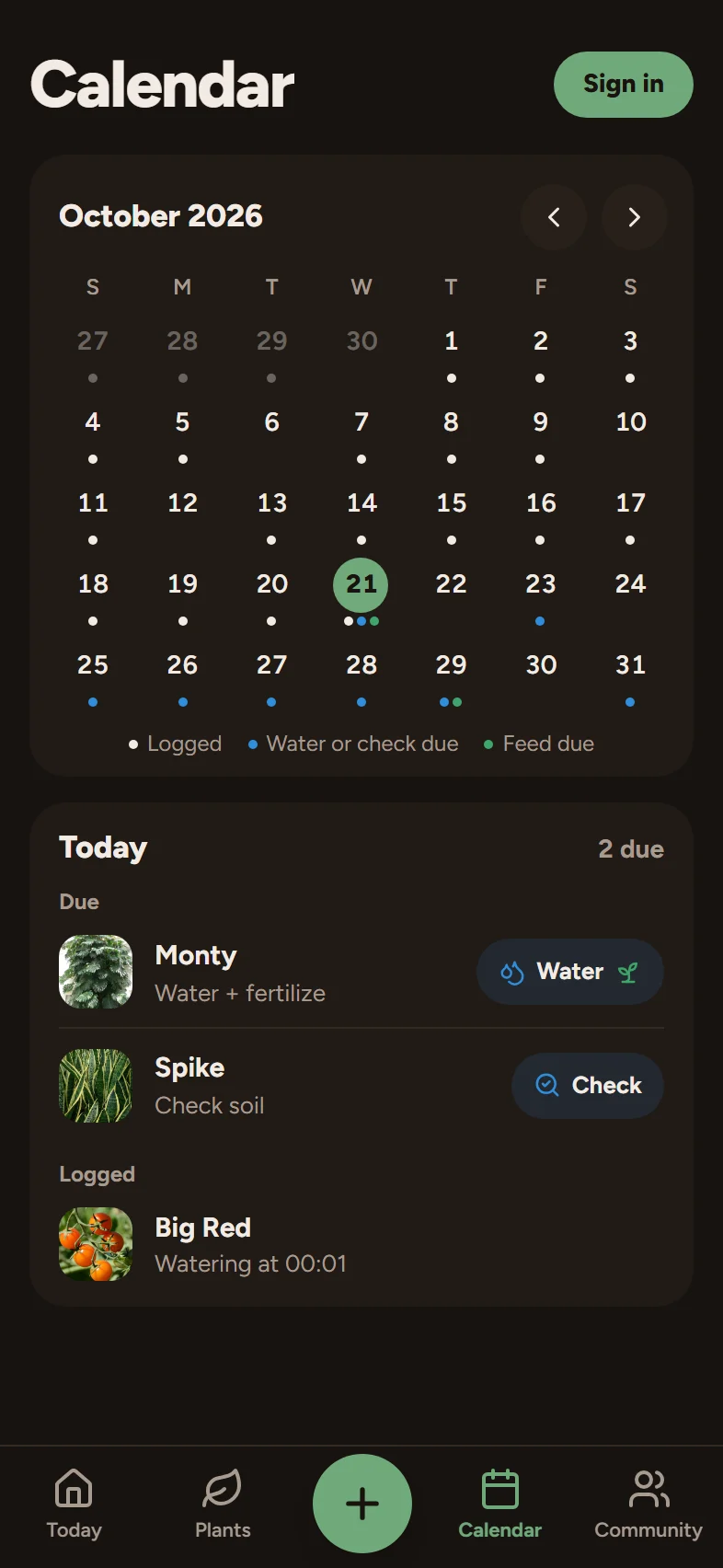
Read the month
The month card marks days with dots:
- Logged: you recorded care on that day.
- Water or check due: a watering, or a soil or reservoir check, is due.
- Feed due: a fertilizing is due.
Press Today to jump back to the current month, and use the arrows to move a month at a time. The week starts on the day you chose in Profile, under Preferences, First day of the week (it follows your region while it is set to Automatic).
The calendar looks forward using the same rule as Today. It repeats each plant's watering at its interval, and a fertilizer that is due lands on the first watering on or after its date, so you see one marker per plant per day and not two. A plant that has no watering schedule shows its feed on its own dates.
Open a day
Tap any day. The card under the month lists everything Due and everything Logged that day, for every plant, with the time of each log. If there is nothing, it says "Nothing logged or due."
- Pressing the pill on a due row opens the Log care sheet for that plant, as it does on Today.
- On a day in the future the row says Due. You can log these on the day., and has no button: come back on that day to log it.
Export your whole garden
Press Export at the top of the Calendar. You get one .ics file that carries every plant's schedule, which Apple Calendar, Outlook, Google Calendar and most other calendar apps can import.
What the file contains:
- One event per plant per day, titled for the job: "Water Monty", "Check soil on Fern", "Water + fertilize Monty" when a feeding rides on the watering.
- Events from today forward, as far as the end of next year, with at most 60 waterings per plant.
- Plants marked Dead or Gifted away are left out.
The events are dated entries, not a repeating rule. That is because the fertilizer rides on a particular watering, which a repeat rule cannot say. Two consequences are worth knowing:
- It is a snapshot. Changing a plant's schedule or logging care does not change events already in your calendar. Export again after a change.
- Each event has a fixed ID made from the plant and the date, so importing the same dates again usually updates those events rather than adding duplicates, in the calendar apps that honour it.
If you want live nudges, use reminders: they are always based on today's real state.
Export one plant
Open a plant and scroll to Add to calendar or export. It offers:
- .ics file: the same export for just this plant.
- CSV history: every event you ever logged for the plant, as a spreadsheet file. This is also the way to keep a copy of a plant's log.
- Google Calendar links: a repeating watering event, with the feeding noted in its details, or a Feed link alone for a plant that has no watering schedule.
When the calendar looks empty
Add a plant and its schedule fills the calendar. A plant with no schedule (no watering interval and no feeding) has nothing to show. Open the plant, press Edit, and set the Watering row. Getting started explains the three ways a plant can be tracked.