Log watering, fertilizing and photos
Every time you look after a plant, you can log it. The log is what keeps the next due date honest, and what turns a pile of photos into a story of how a plant grew.
Ways to open the Log care sheet
- Press the button on a plant's card on Today (Water, Water + fertilize, Check soil, Check water or Feed).
- Press the pill on a row in Plants, or on a day's row in the Calendar.
- Open a plant and press its main button, or the + beside it.
- Press the raised + in the tab bar and choose Log care, then pick the plant.
When the sheet opens for a plant, it shows that plant's photo and name at the top, with a Change button in case you picked the wrong one. The sheet is already filled in for the job you pressed.
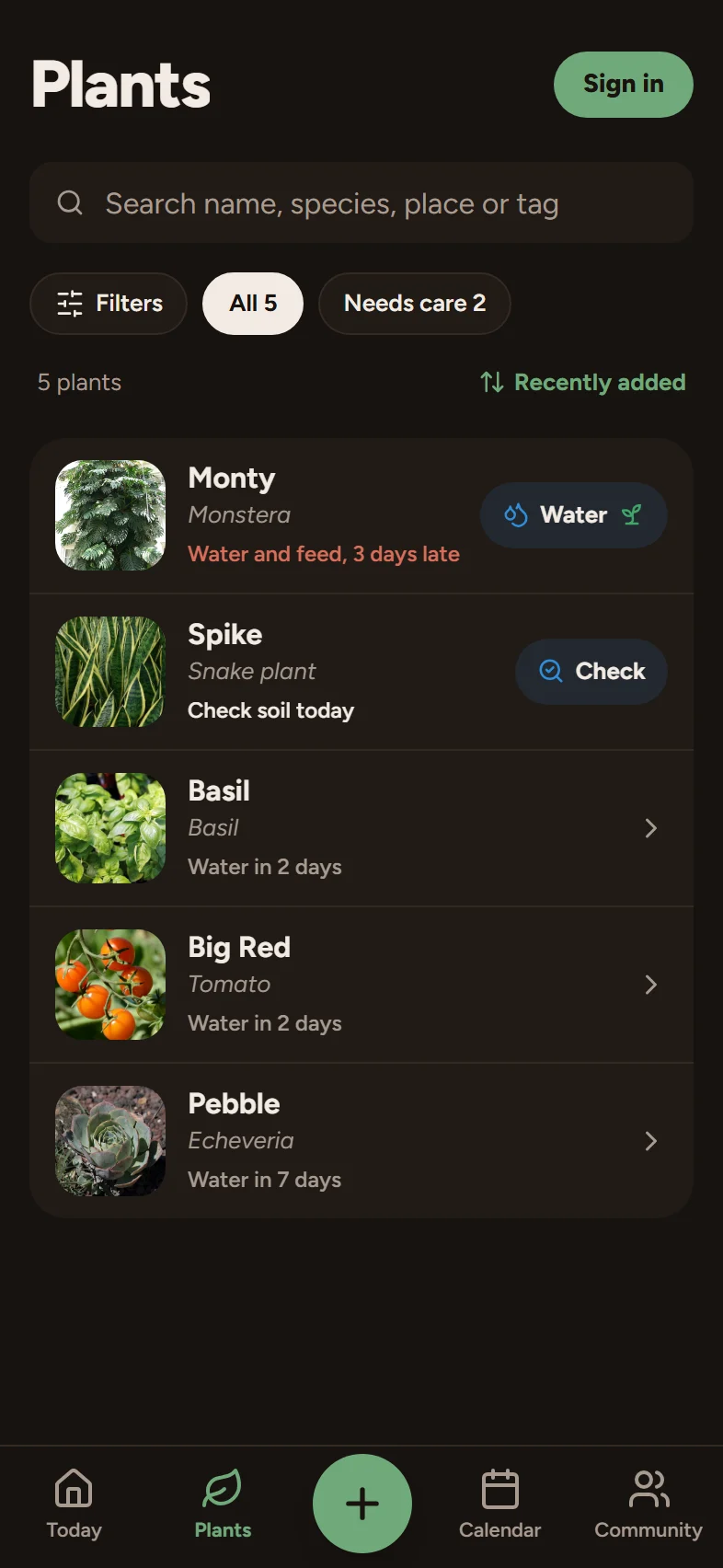
Skip the sheet with one tap
If you water many plants in a row, open Profile and switch on Quick log with one tap under Logging. Water, Check soil and Feed then log at once, with an Undo button on the confirmation, instead of opening the sheet.
What you can log
The sheet asks What did you do? and offers three common jobs: Watering, Check and Fertilizing. More reveals the rest:
- Repotting
- Pruning
- Pest treatment
- Propagation
- Observation, for anything else worth remembering
Whatever you choose, When defaults to now. Change it to back-date a job you forgot to log.
Watering and checks
You can note the Amount (Light, Normal or Deep, or an exact amount in the unit you chose in Profile) and the Water type: tap, filtered, rain or distilled. A Check records that you looked at the soil or the reservoir, and counts for a plant tracked that way.
Fertilizing
Turn on Fertilizer added? when you fed the plant. That counts towards its fertilizing schedule. You can pick a saved fertilizer, or type its name, N-P-K, dilution and amount, and Save as a fertilizer to reuse it next time. A watering that says fertilizer was added is both jobs in one entry.
Repotting
Fill in the New pot size in centimetres and the new soil mix. Leave Also update the plant's pot and soil on, and the plant's pot size, soil and last repot date change to match. Turn it off to log an old repot just for the record. If the plant already has a later repot, the log is kept and the plant is left as it is. A custom soil recipe needs every ingredient filled in, adding up to 100%.
Pests, notes and photos
For a pest treatment, add the Pest type and the Product used. Every log has a Note and room for up to 6 photos.
Share a log with a group
The Share to row lists your groups. Pick one or more and the log is posted there too, with its photos. Members of the group see the plant's name and your photos, but the plant itself does not become public. More in Groups and invite links.
Fix or delete a log
Open the plant and look at its Care log, which shows the latest three entries (press See all for the rest). Tap a row to open it in the same sheet, change anything and press Save changes. The sheet has Delete this log; after you delete, you get a moment to restore it.
A new log also shows an Undo on its confirmation right after you save.
Photos, the growth strip and the cover
Photos from your logs line up on the plant page under Growth, oldest first, so you can watch the plant change. Tap one to see it full screen and swipe to move through them. You can also add photos to a plant directly from the plant page (Add photo) and keep up to 12 in its gallery in the plant form.
The cover is the picture that represents the plant in lists and on Today. In the plant form you can:
- pick any of the plant's photos as the cover (Set as cover), or
- turn on Use newest photo automatically, so the cover follows the latest photo you add to a care log.
Picking a cover by hand turns the automatic cover off. A cover that is replaced is not thrown away: it moves into the gallery.
Charts and your streak
Open a plant and switch from Timeline to Charts to see waterings and feedings per month. Profile counts your plants, the events you have logged and your best run of weeks in a row with at least one log.
In a shared household
When several people look after one garden, every log says who wrote it ("by Noa"), and the plant page shows who watered last. See Share a garden with your household.