Getting started with Keep Growing
Keep Growing tells you which of your plants needs water, a soil check or fertilizer today, and keeps a log of what you did. This guide takes you from nothing to a working garden.
Look around before you sign up
You can open the app without an account. A visitor sees a sample garden on the Today, Plants and Calendar screens so you can see how everything fits together. The sample is not yours and nothing in it can be changed. The moment you try to add a plant or log care, the app asks you to sign in or create an account.
Create your account
- Open the app and choose Create an account.
- Type your name, your email address and a password of at least 6 characters. Or choose Continue with Google and skip the form.
- If you used email, we send a confirmation link. Press the button in that email to finish. A link works once and for one hour. If nothing arrives within a minute, look in your spam folder or press Send it again (it counts down 60 seconds between sends).
An account that is never confirmed is deleted after a week, so there is nothing to clean up if you change your mind. If you forget your password later, use Forgot password? on the log in page and we email you a link that sets a new one.
Add your first plant
The tab bar at the bottom has Today, Plants, a raised + in the middle, Calendar and Community. Press the + and choose Add a plant.
- Start from a common plant. A row of common houseplants sits at the top. Picking one fills in the species, the light, a soil recipe and the care intervals. You can change any of it afterwards.
- Give it a nickname. This is the only thing the form insists on. Use any name that helps you tell two pothos apart.
- Add a photo. The photo tile is optional, and you can add more later when you log care.
- Fill in the rows you care about. Species, where it lives, watering, feeding, pot and soil, and tags, status and notes each open their own sheet. Everything is optional and everything can be edited later.
Press Save plant. A new plant is private. Nobody else can see it unless you turn on Share in Community (see Share a plant in Community).
The free plan holds 15 plants. If you reach that, everything you have stays and adding more needs Premium: Premium and promo codes explains how that works.
Not ready to type? Load the demo
If your garden is empty, Profile offers Load demo plants. It fills your account with 5 plants and about six months of history so you can see how the screens look. You can delete them whenever you like.
How often a plant needs care
The Watering row decides how Keep Growing treats the plant. There are three ways to track it.
- Water on a schedule. The app reminds you to water every N days.
- Check the soil. The app reminds you to feel the soil every N days, and you water only if it is dry. This suits plants that hate wet feet.
- Self-watering pot. The app reminds you to check the reservoir every N days and top it up.
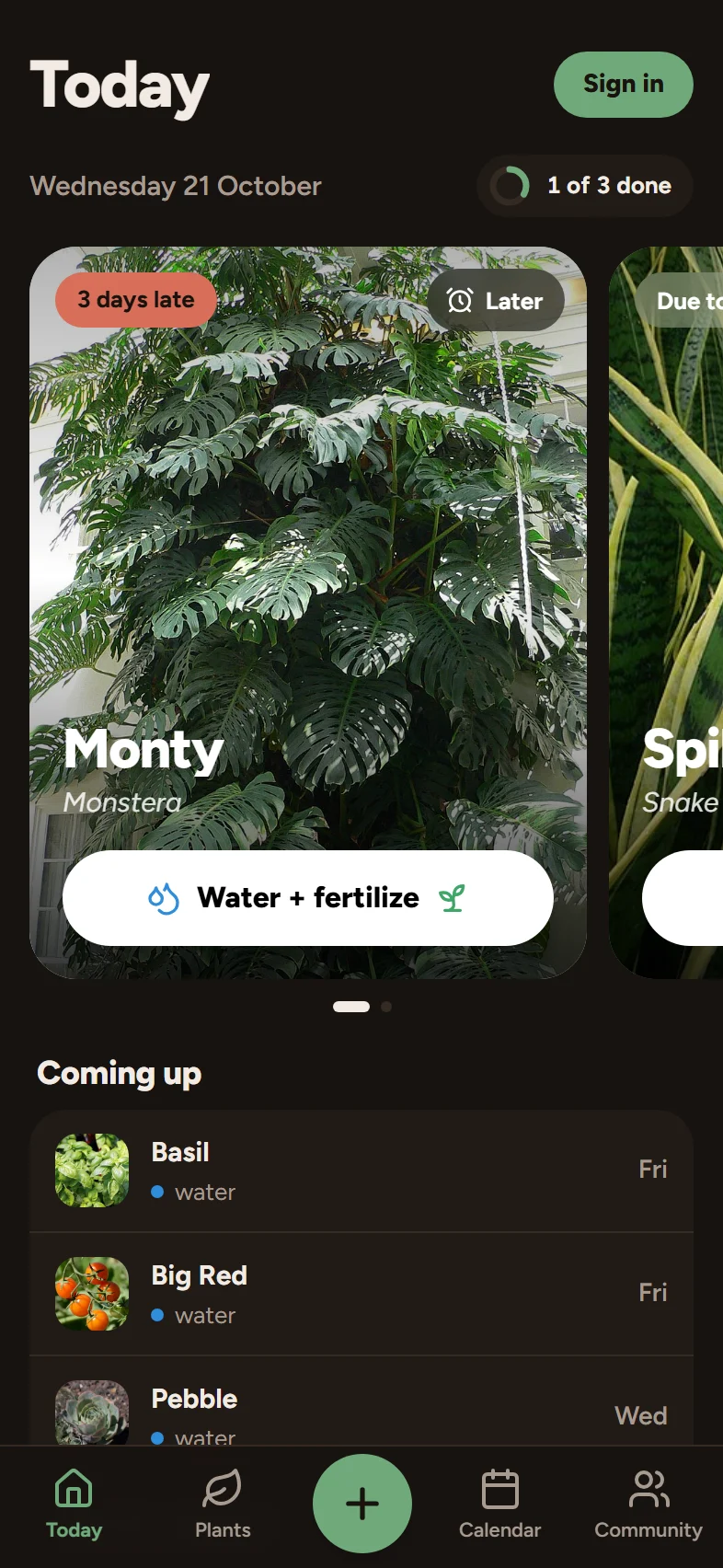
The Feeding row works the same way. A plant can be fed every N days, or every N waterings, or never ("This plant is never fed"). Fertilizer rides on a watering: when a feed is due, the day's card says Water + fertilize instead of Water, so you do both in one go. A plant that has no watering schedule but is fed gets its own Feed card.
Once you log care, the app counts forward from that day. A plant that has not been looked after on time shows how many days late it is.
Use Today every day
Today shows a card for every plant that needs you, one at a time, and a counter such as "2 of 5 done". Swipe to the next card. Each card has a button named for the job: Water, Water + fertilize, Check soil, Check water or Feed. Pressing it opens the Log care sheet for that plant, already filled in. Confirm it and the card is done. A Later button on a card snoozes it (see below).
When nothing is due the screen says "All caught up" and shows what is coming next.
Snoozing
Later hides a plant's care for a while, counted from today: tomorrow, 2 days, 3 days, 1 week, or a number of days you choose, from 1 to 60. Logging the care cancels the snooze, and Remove snooze brings it back at once. Snoozing a watering also holds back the fertilizer that goes with it.
Find your plants
The Plants tab lists every plant with a status line such as "Water tomorrow" or "Water, 2 days late". You can search by name, species, place or tag, press Needs care to see only what is due, open Filters to narrow by location, tag, status or soil, and sort or group the list. Pressing Select lets you water, fertilize or delete several plants at once.
What to read next
- Turn on plant care reminders on iPhone and Android so the app nudges you at a time you choose.
- Log watering, fertilizing and photos for everything the Log care sheet can record.
- Use the calendar and export your schedule to see the weeks ahead.
- Language, units, time zone and week to make the app yours.
If you want a bit of plant care background while you set up, the blog has how often to water houseplants.